
This article explains how to add Loyalty Plus by bLoyal for your Korona POS system.
Go to koronacloud.com
1. Access bLoyal in KORONA Studio
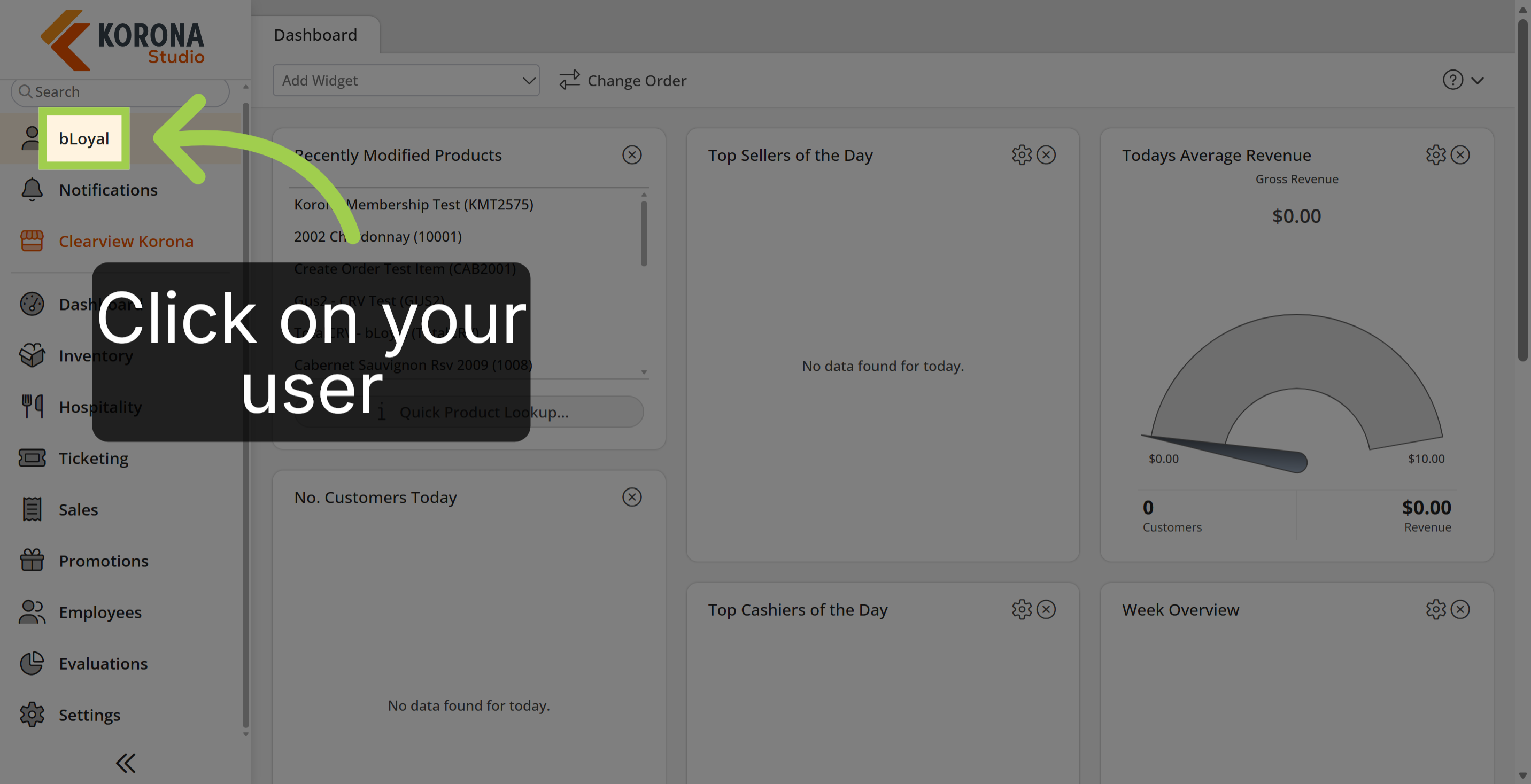
Click on your user within KORONA Studio in the top left menu
2. Open KORONA AppCenter
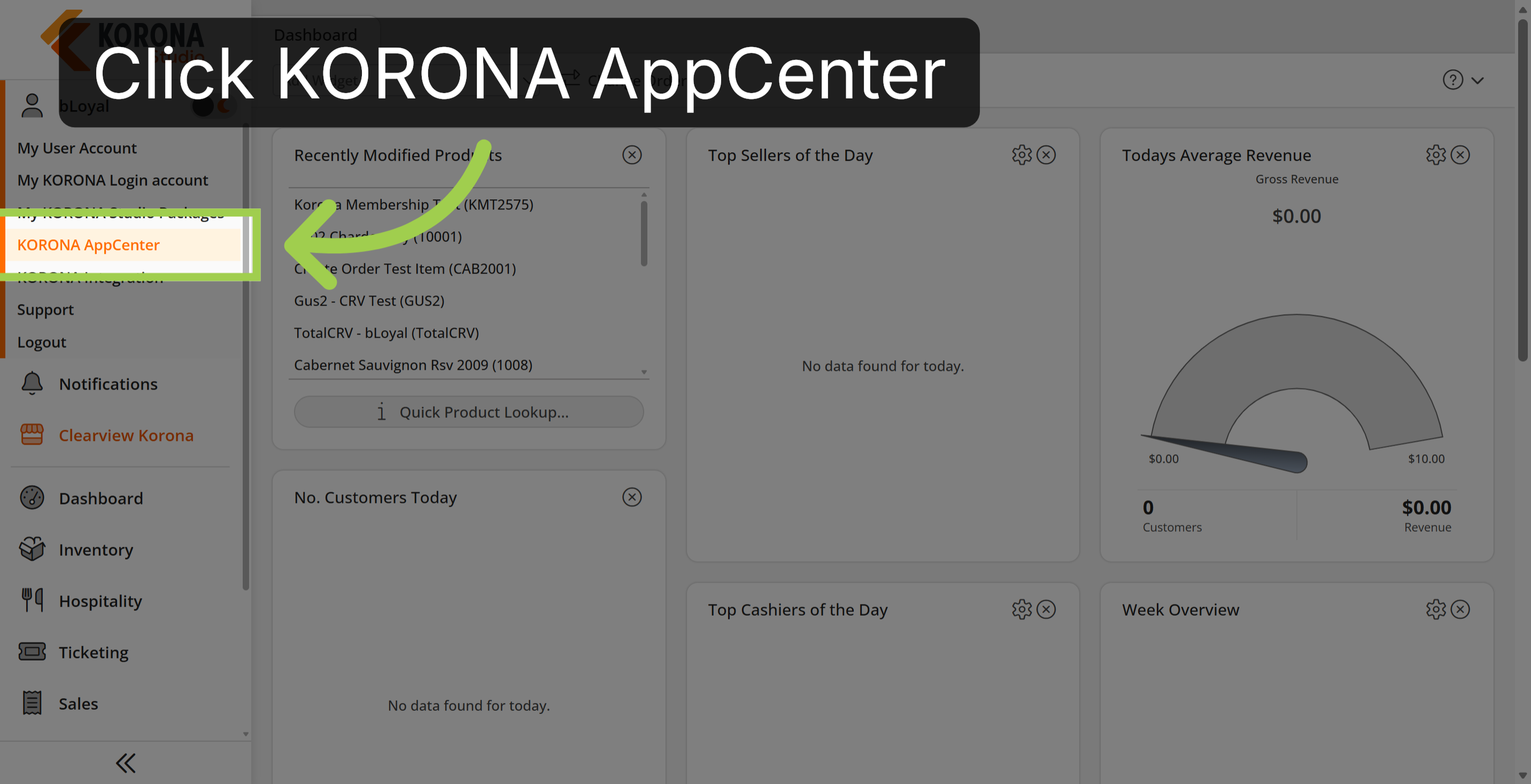
Click KORONA AppCenter to access available applications for integration.
3. Navigate to AppCenter Website
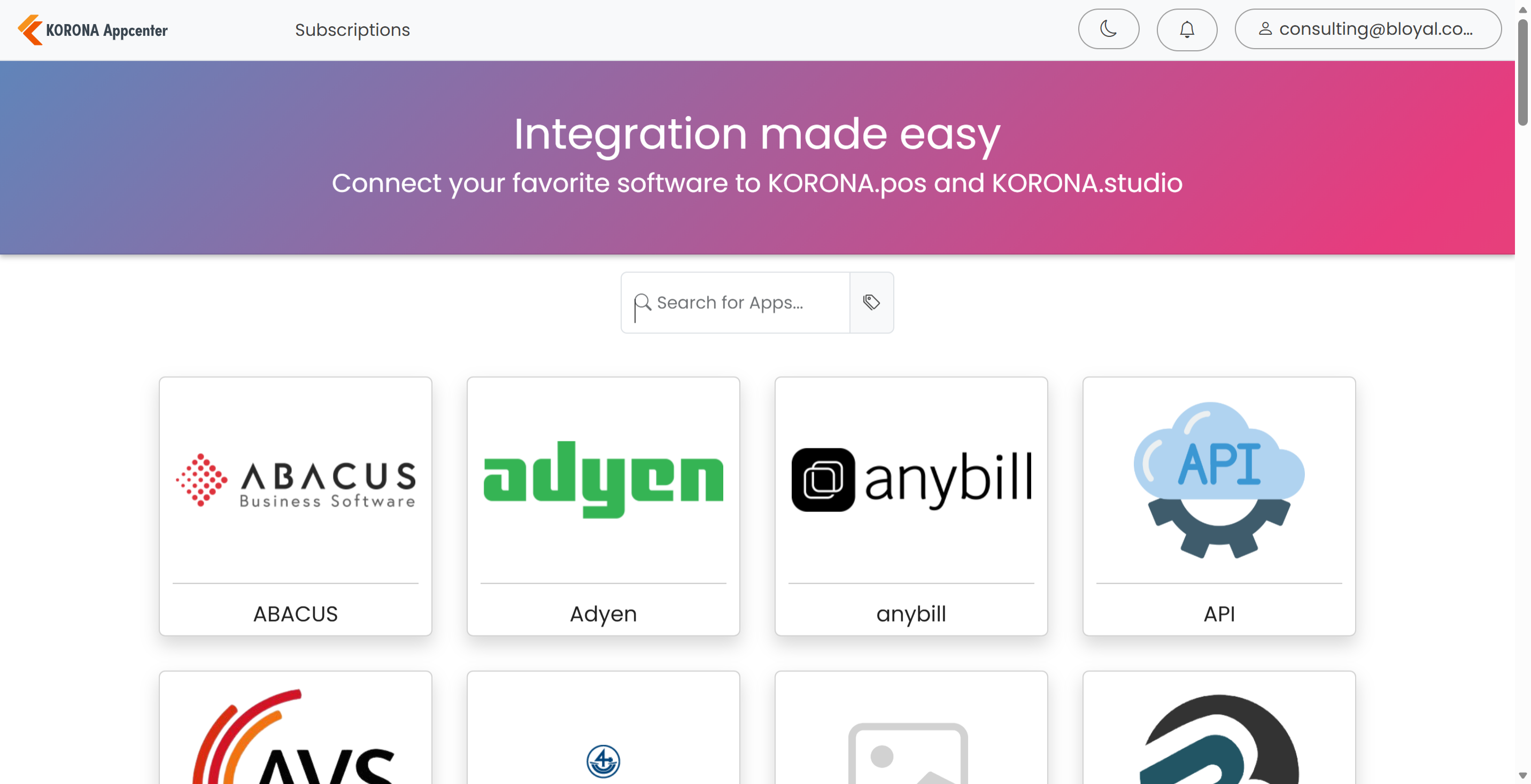
This will open the App Center in a new tab in your browser.
4. Search for bLoyal App
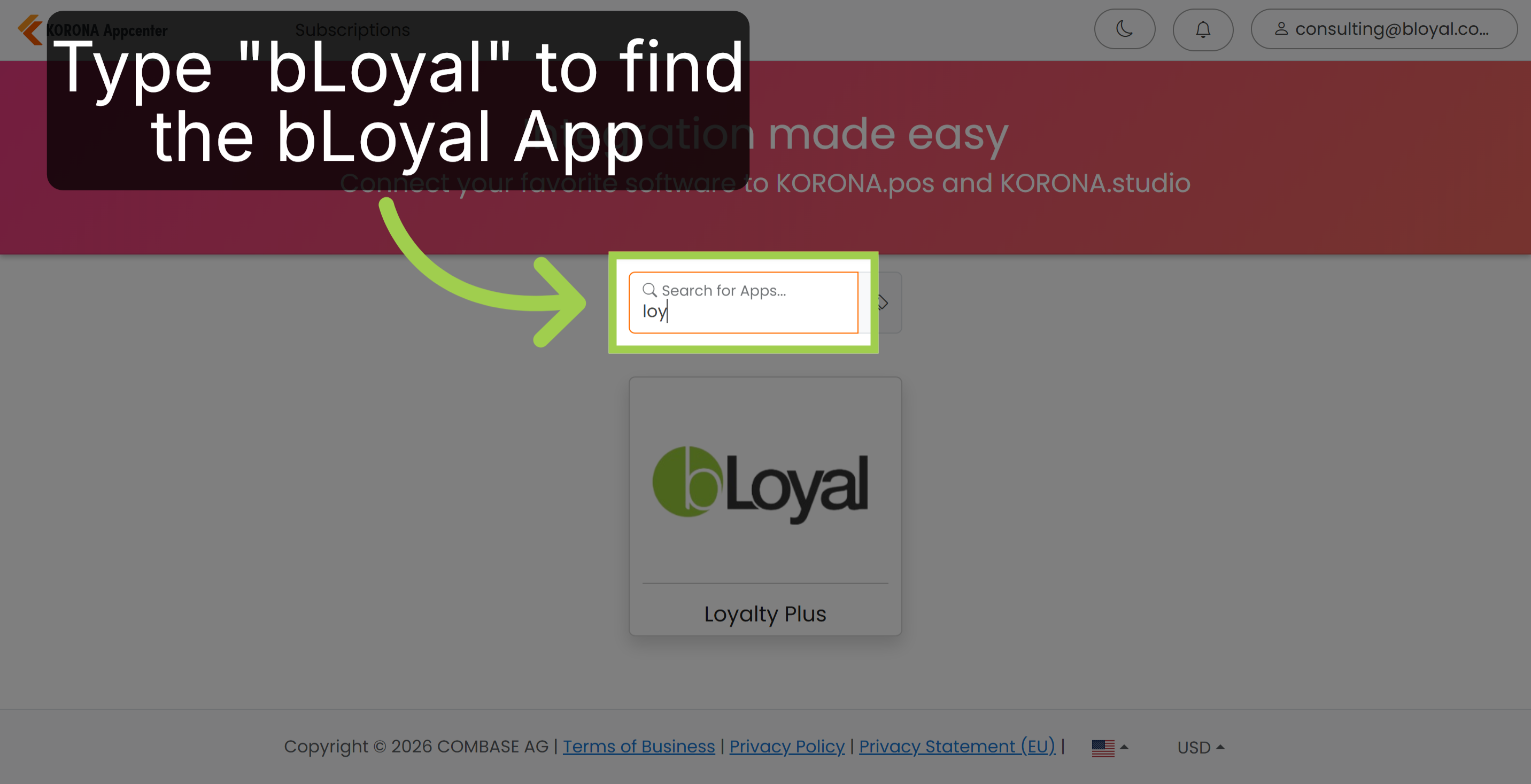
Click the search field and type Loyalty to find the bLoyal app in the App Center.
5. Open Subscription Add Page
Open the bLoyal application page to begin the process.
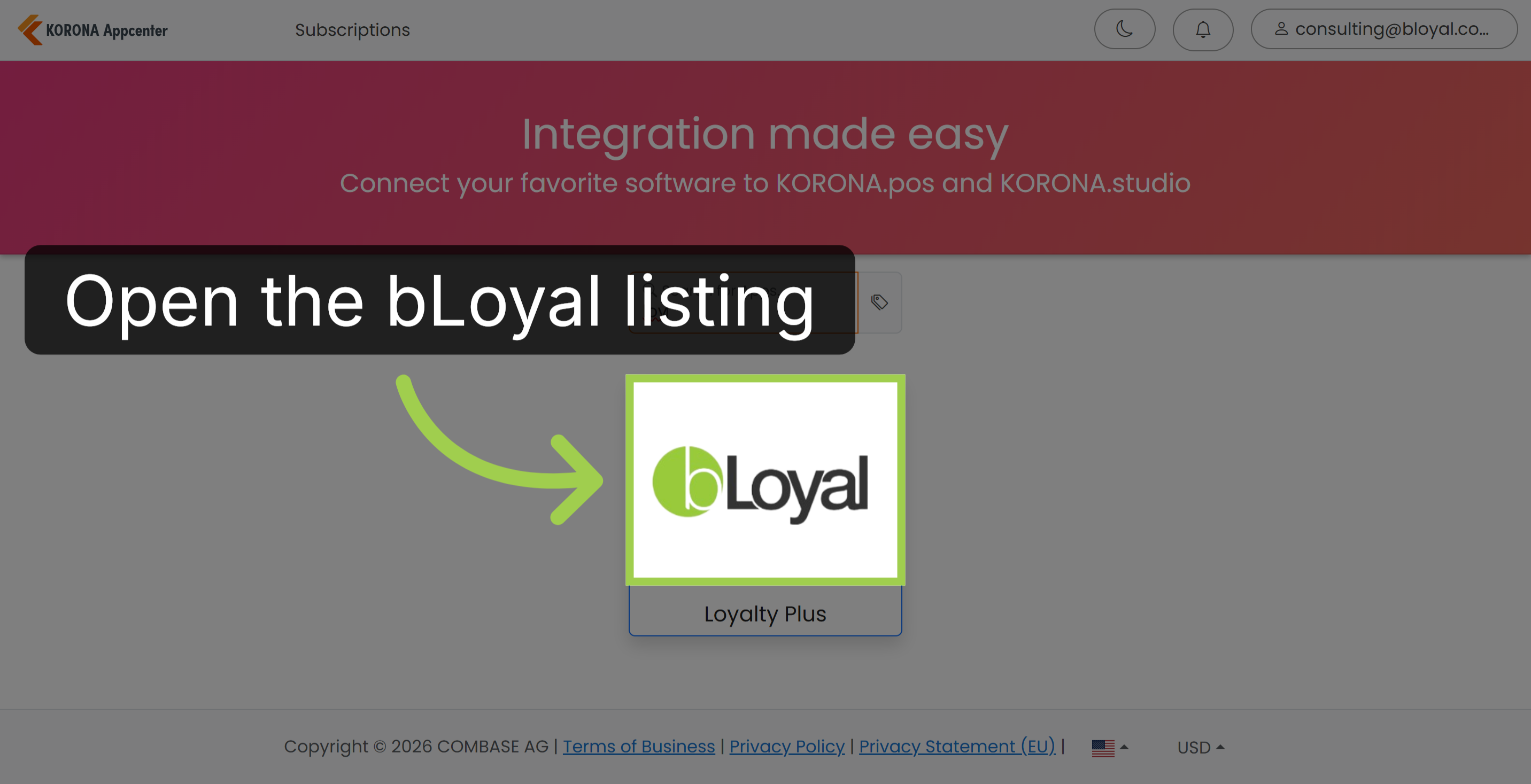
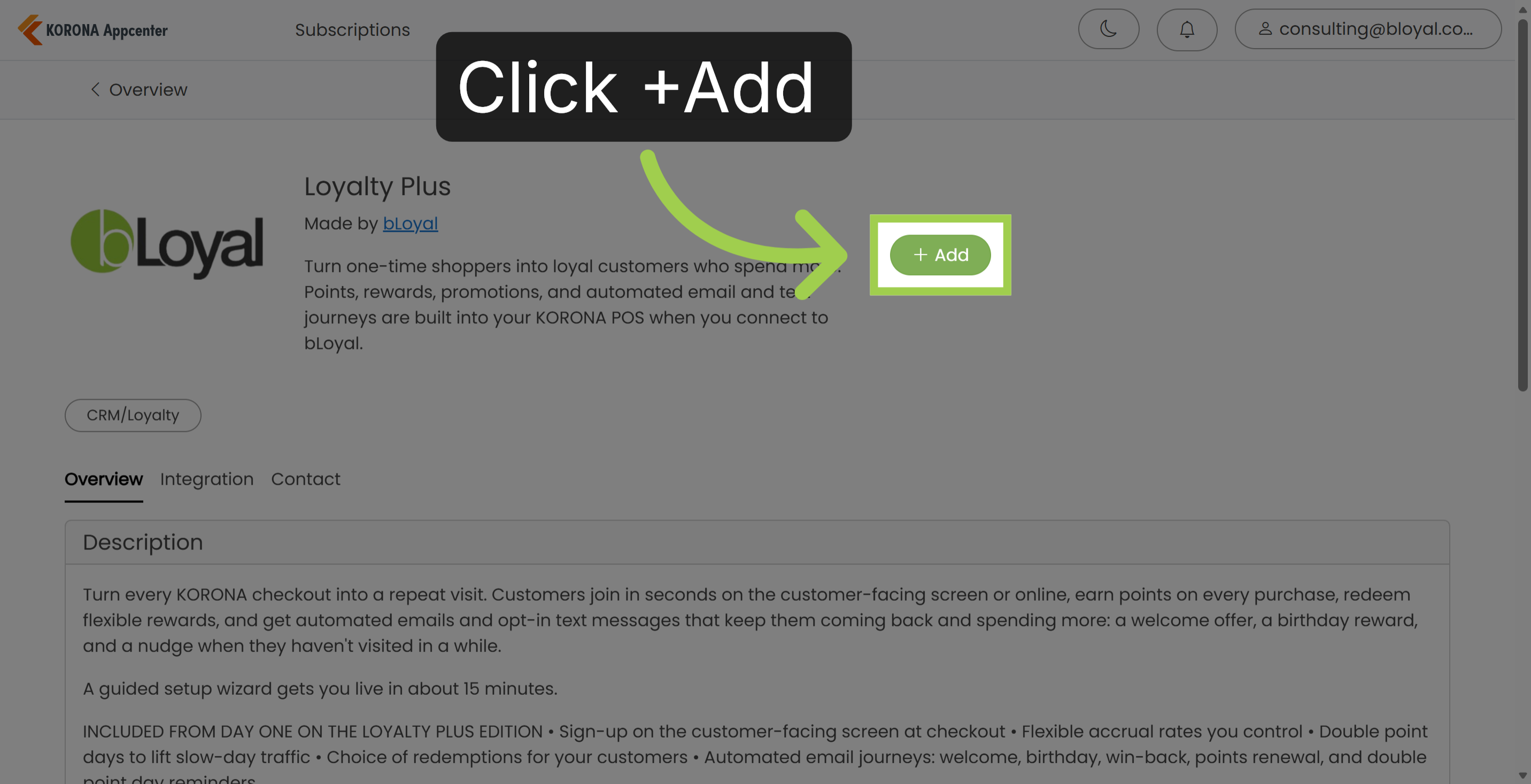
6. Add bLoyal Subscription
Click Add to add the bLoyal configuration section to your KORONA Studio portal.
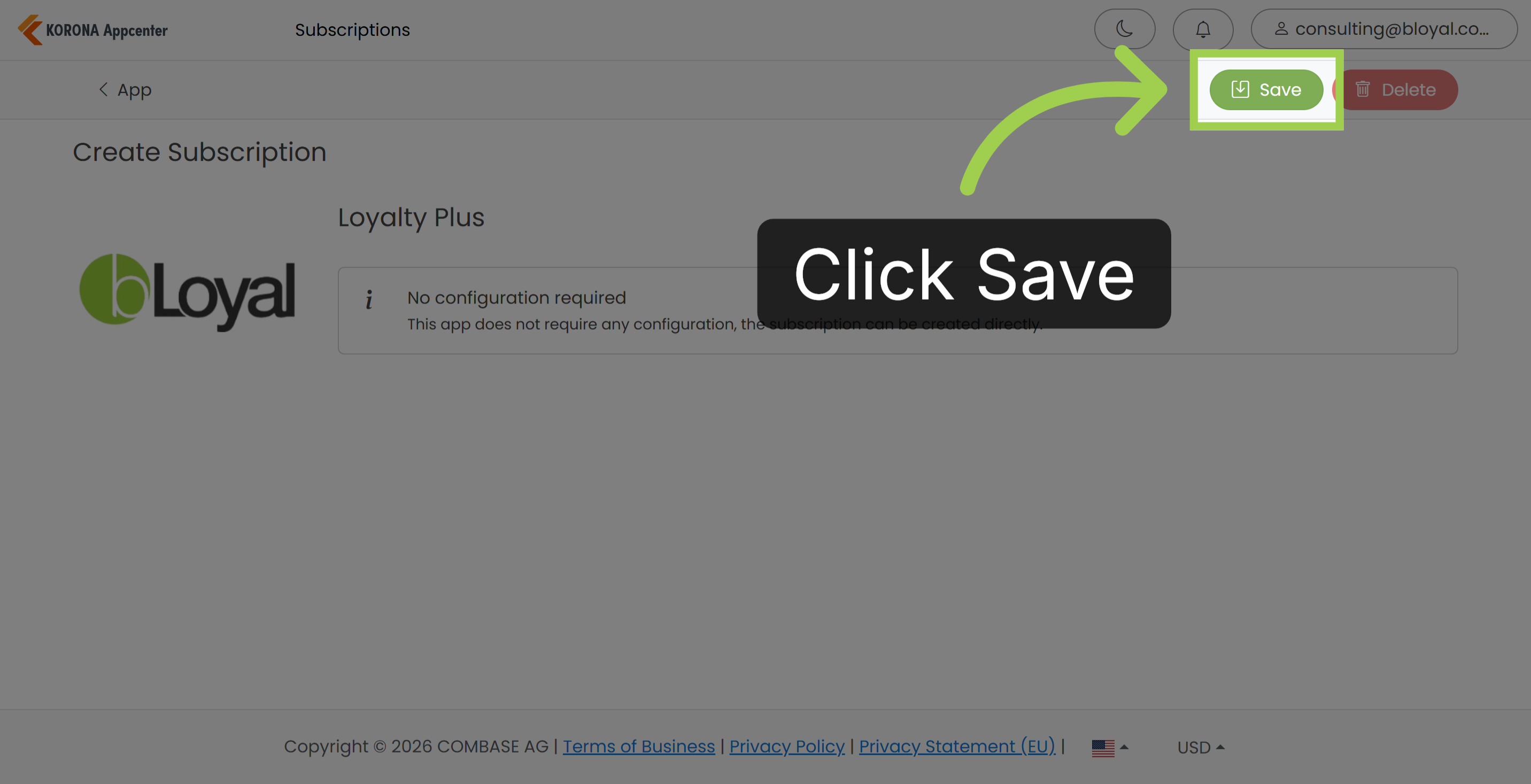
7. Save Subscription Settings
Click Save to complete this step.
8. Return to KORONA Studio
Switch back to the KORONA Studio portal to start the configuration process.
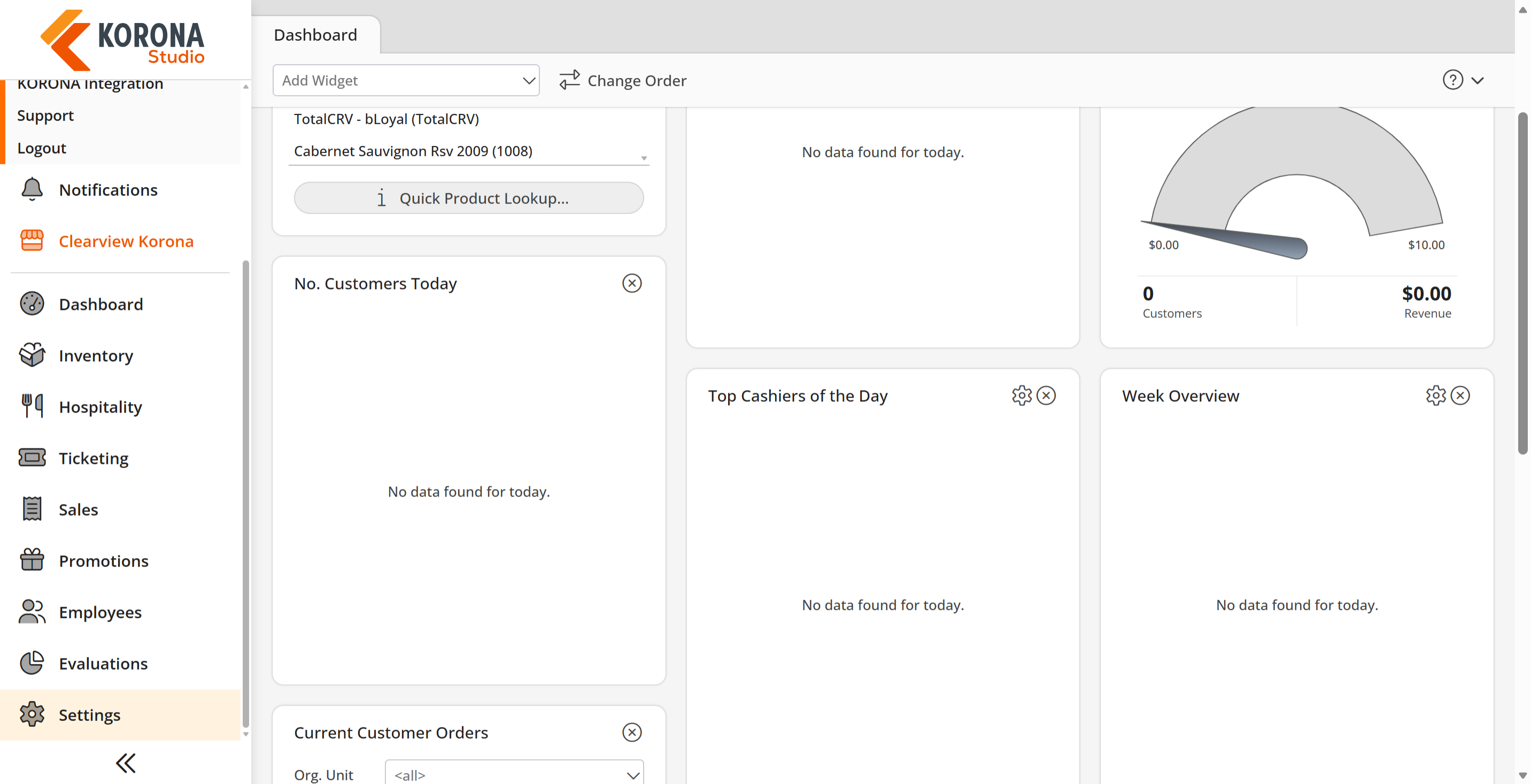
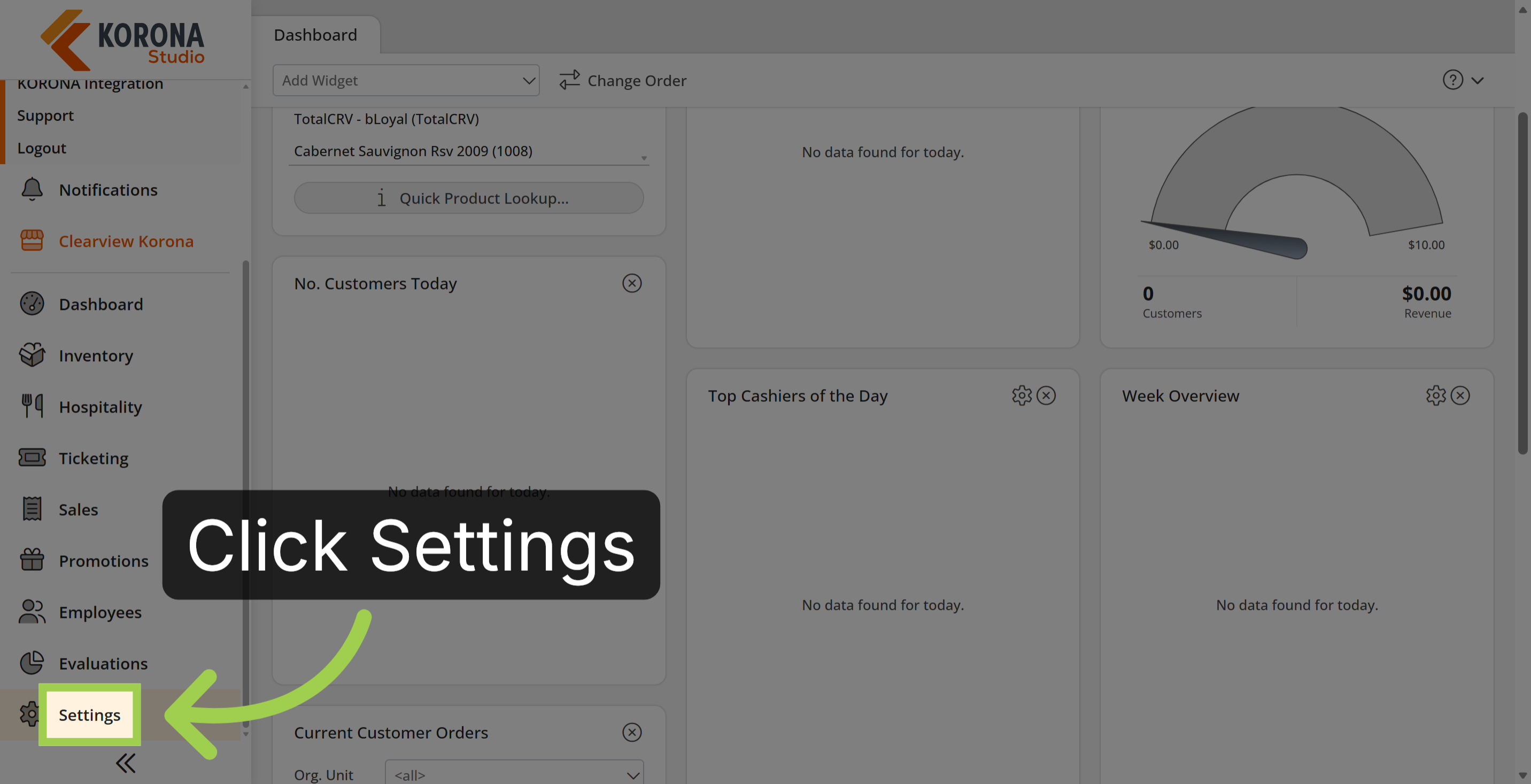
9. Access Settings Menu
Click Settings within KORONA Studio to access configuration options.
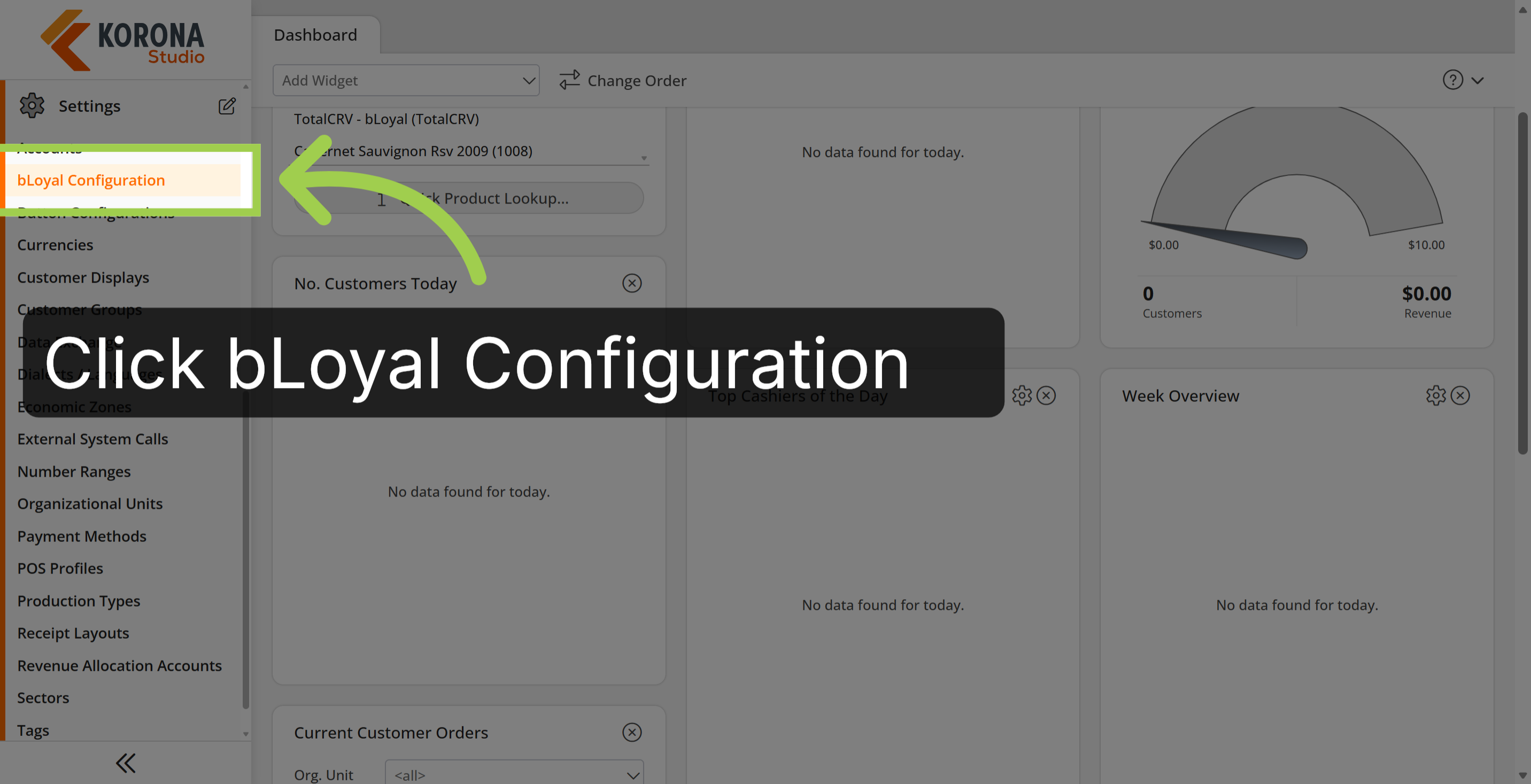
10. Open bLoyal Configuration
Click bLoyal Configuration to move to Step 2.
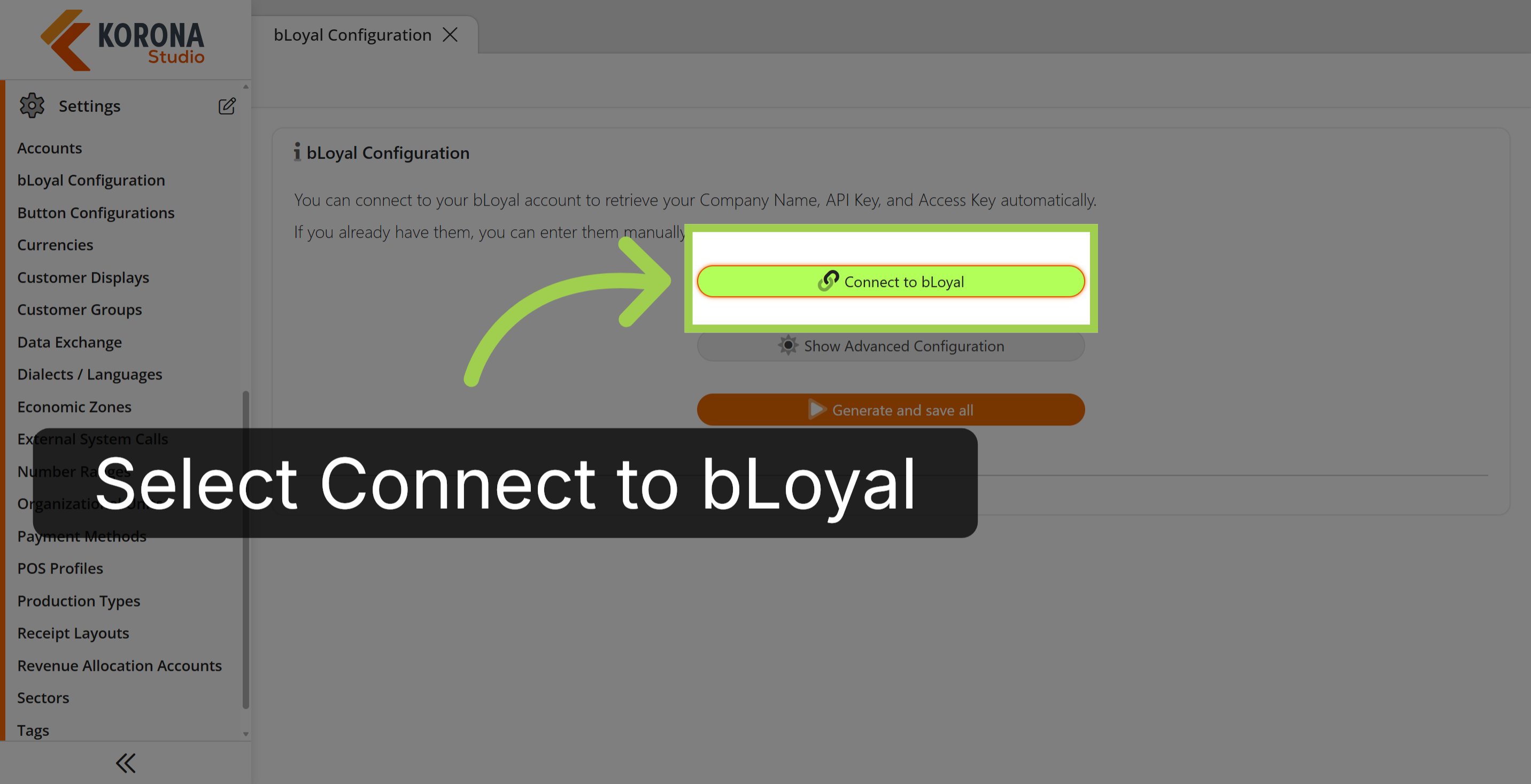
11. Connect bLoyal Account
Select Connect to bLoyal to provision and configure your bLoyal account
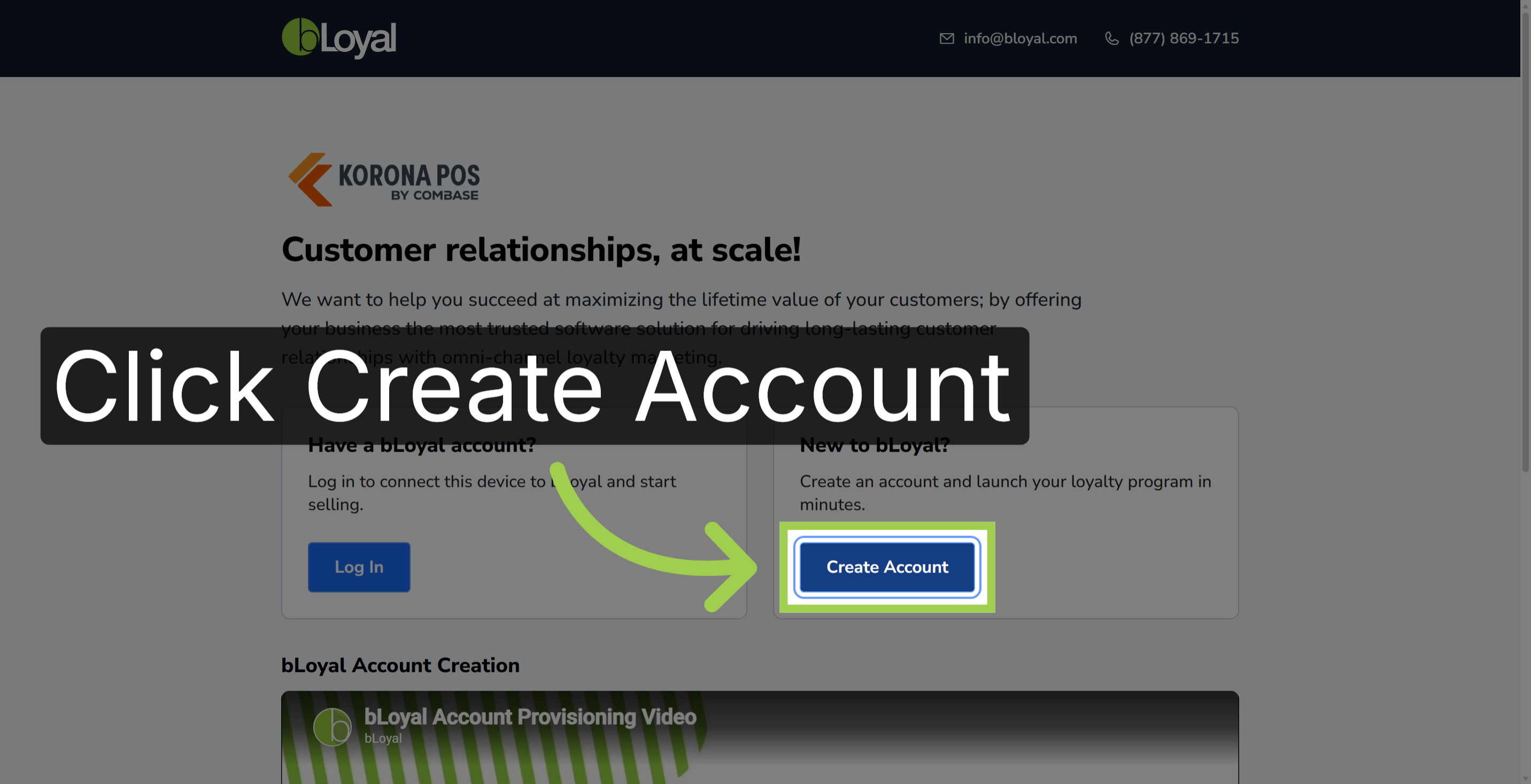
12. Launch bLoyal Configuration Wizard
This will open a new tab which will have the bLoyal configuration wizard. Simply click the Create Account button. This will launch a wizard that will help you complete your loyalty program configuration in less than 15 minutes. Once done, please go back to your Korona Studio portal
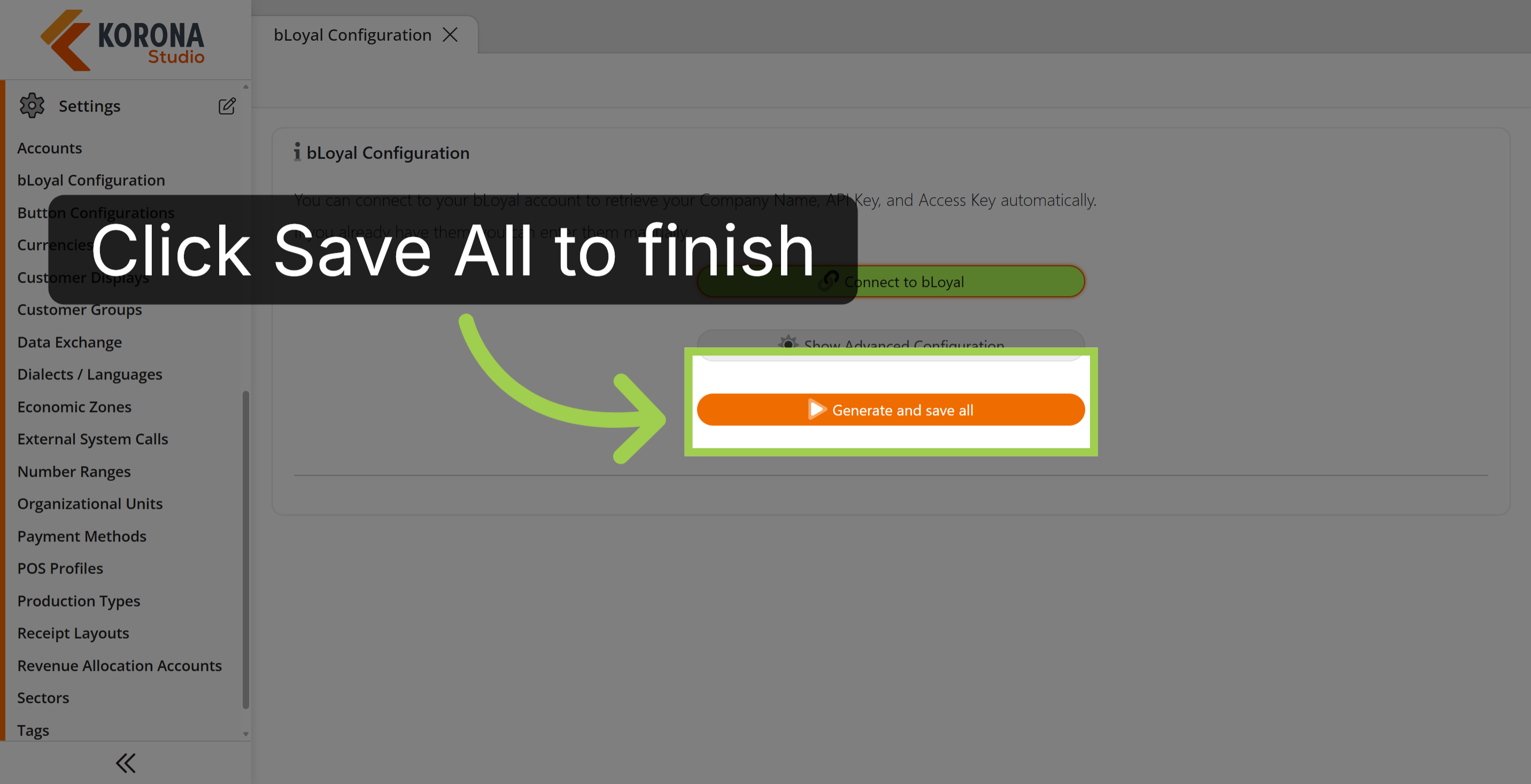
13. Connect bLoyal Account
Click on the orange Save All button to save and finish your configuration.
Thank you for adding Loyalty Plus by bLoyal to your KORONA POS system. You are ready to maximize customer lifetime value and grow your business.
Comments
0 comments
Article is closed for comments.